raspiCamSrv Info/System Information

This screen shows information on the Raspberry Pi system as well as on the software stack required by raspiCamSrv.
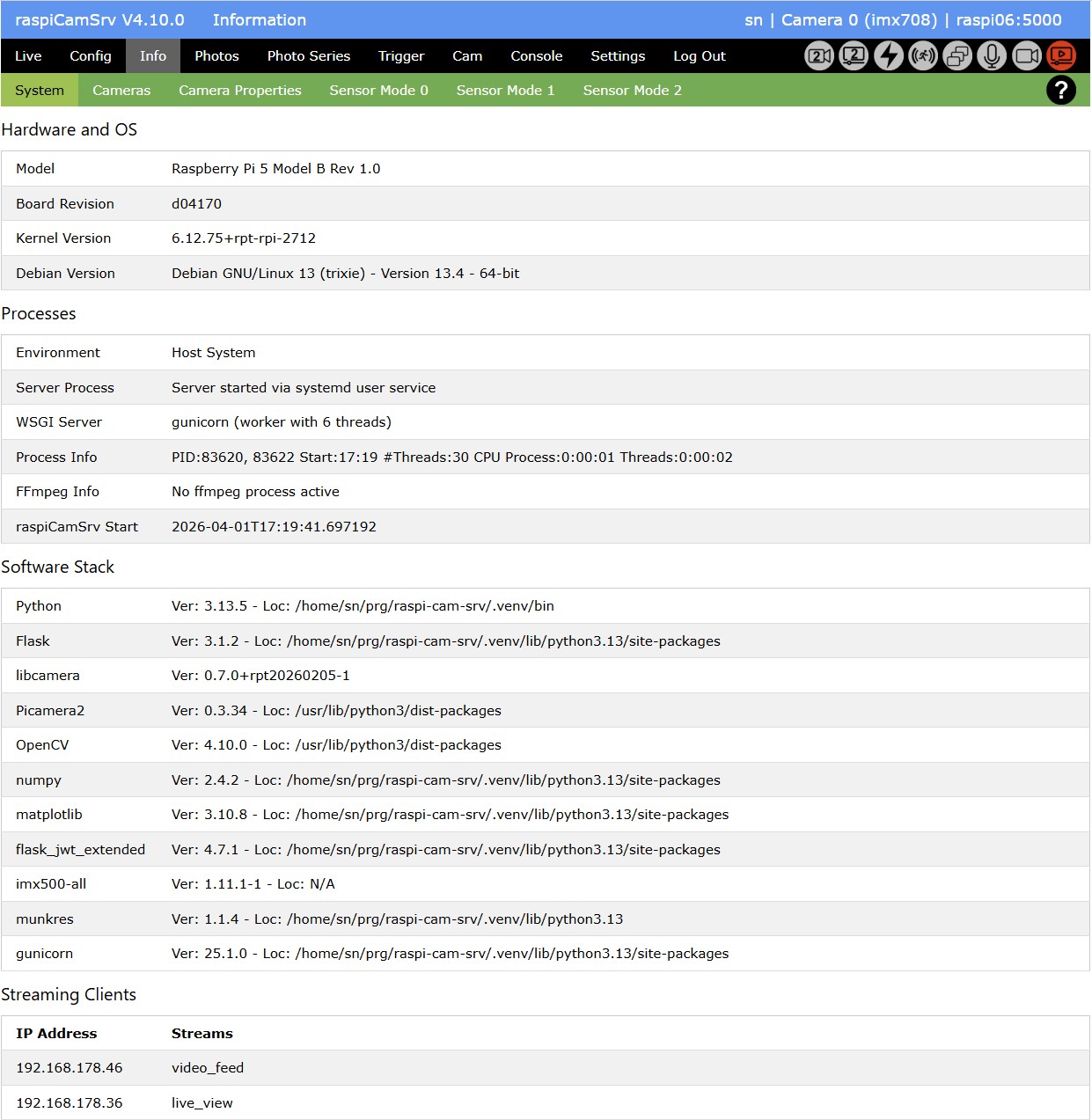
Hardware and OS
This section shows information on the server hardware and operating system
- Model
Raspberry Pi model frpm/proc/device-tree/model - Board Revision
Board revision from/proc/cpuinfo - Kernel Version
Kernel Version as reported byuname -r - Debian Version
Information on the operating system:
.. Description fromlsb_release -a
.. Version from/etc/debian_version
.. 32-bit/64-bit fromdpkg-architecture --query DEB_HOST_ARCH
Processes
This section informs about active processes related to raspiCamSrv.
Environment
shows whether the raspiCamSrv server process is running
- directly on the "Host System"
- or in a "Docker Container"
Server Process
shows how the server process has been started:
- "Server started via systemd system service"
in this case, audio cannot be recorded along with video. - "Server started via systemd user service"
in this case, audio can be recorded along with video. - "Server started via command line"
WSGI Server
raspiCamSrv is based on Flask, which is a WSGI (Web Server Gateway Interface) application.
A WSGI server is required to run the application.
The server which is currently active is shown here.
Standard raspiCamSrv installations support the following alternatives:
- gunicorn
Gunicorn is a mature, stable and widely used WSGI server for production use.
For Gunicorn, also the number of threads, configured for the worker process, are shown.
The number of threads limit the number of simultaneous MJPEG streams (See Gunicorn Settings). - werkzeug
Werkzeug is the WSGI server integrated in Flask for development and testing purposes.
On start, a warning is shown:
Do not use it in a production deployment. Use a production WSGI server instead.
Process Info
shows current process information for the raspiCamSrv server process (result of Linux ps -eLf command)
- PID
Process ID of WSGI server running Flask.
In case of werkzeug, there is just one process.
For gunicorn, there are two processes, where the first is the Master process with typically 2 threads which control a single worker process (restricted through-w 1option at startup) which is running the Flask application. - Start
Process start time (STIME): either start time (HH:MM) at current day or day (MonDD) when process was started. - #Threads
Number of threads (NLWP) - CPU Process
CPU time of process (TIME for LWP == PID) in HH:MM:SS - CPU Threads
Sum of CPU time for threads ((TIME for LWP != PID)) in %H:MM:SS
FFmpeg Info
shows information on an ffmpeg process if encoding of .mp4 videos is currently active.
Recording of .mp4 videos may have been started manually or as an action within motion capturing
raspiCamSrv Start
shows the time when the raspiCamSrv server has been started.
At server start, raspiCamSrv checks whether or not the Raspberry Pi system time is synchronized with the time server.
When the device is booted and raspiCamSrv is automatically started, the time synchronization will occasionally be done after the Flask server has already been started.
In this case, in order to avoid timing issues, raspiCamSrv will wait at startup until time synchronization is completed.
The time shown here is the system time at the moment when the check for time synchronization was successful.
raspiCamSrv analyzes the output of command timedatectl to check the system clock synchronization status.
If this check fails or times out (60 sec), raspiCamSrv will start nevertheless.
In this case, the information "System time not synced at raspiCamSrv start" will be shown here.
If the server is running in a Docker container (see Running raspiCamSrv as Docker Container), the time is assumed to be synchronized and the check will be skipped.
This is indicated through

Software Stack
In this section, information on installed packages is shown.
- Ver
is the package version - Loc
is the path from which the packages were loaded.
Streaming Clients

The tab lists the clients which are currently using one of the camera streams.
Along with the IP address of the client, a list of streams is shown which the client is using:
- live_view
The Live View stream
indicated by Process Status Indicator
- video_feed
The video Stream for the active camera
indicated by Process Status Indicator - video_feed2
The video Stream for the second camera, if available
indicated by Process Status Indicator