Trigger / Control

With this screen, you control scheduling of event handling and motion detection.
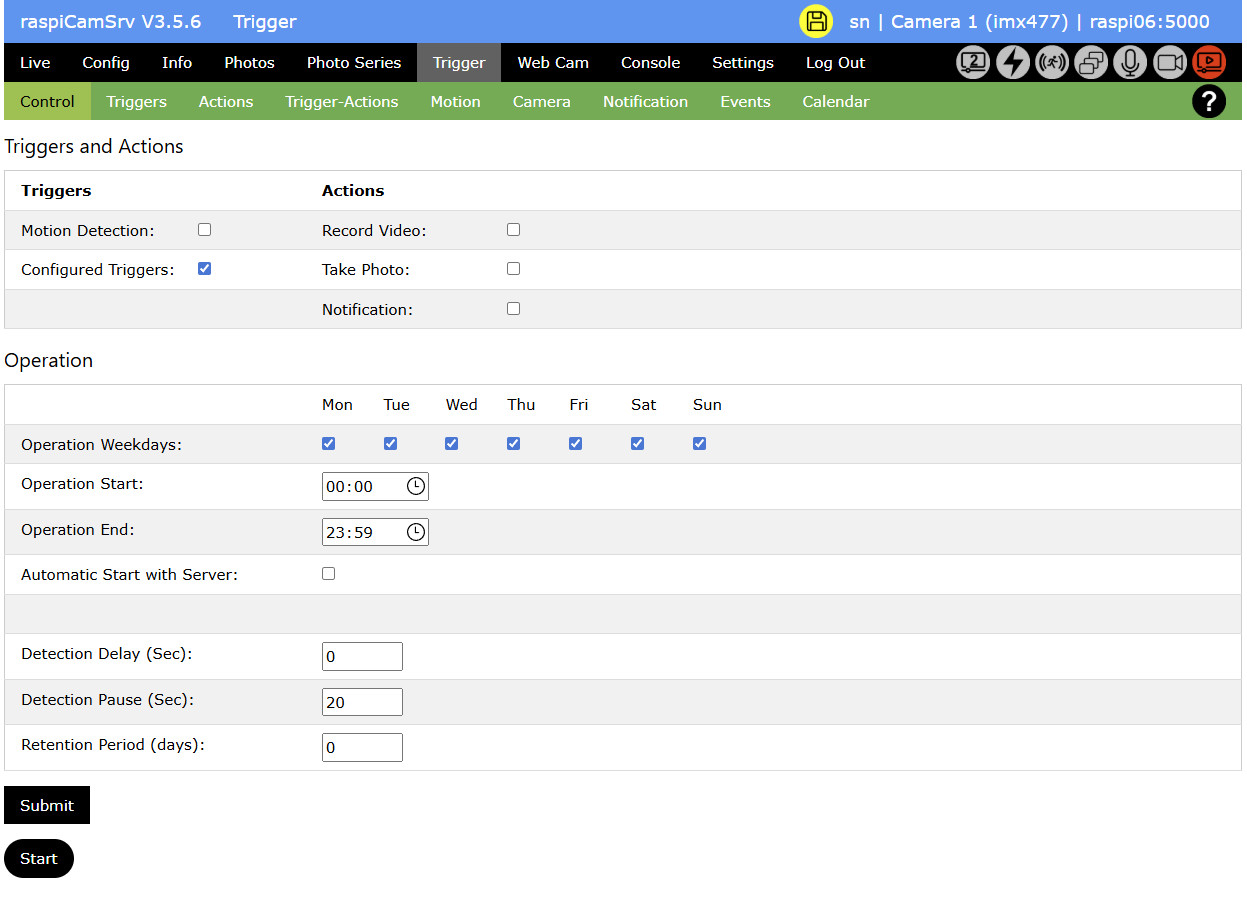
In the Control section, you may specify basic aspects of triggered actions:
Where not otherwise stated, this applies to 'legacy' motion capturing as well as to General Event Handling.
- Under Triggers, you select the triggers to be used.
You can activate Motion detection and/or the other Configured Triggers - Under Actions you specify the actions to be taken in case of motion detection through the camera.
You may select among video recording and photo taking.
In case Record Video is selected, also at least one photo must be taken. This photo will serve as placeholder for the video in the Event Viewer.
With Notification you specify whether or not you want to be informed by e-Mail about an event. The details need to be specified on the Notification tab.
ATTENTION: If you have chosen to only activate Configured Triggers without Motion Detection, the listed Actions will be deactivated because they are only supported with Motion Detection.
From the Configured Triggers, the configured Trigger-Actions will be executed, which may also include camera actions. - With Operation Weekdays, you specify the weekdays when triggering shall be active.
- Operation Start specifies the daytime when triggering is activated on each active weekday.
- Operation End specifies the daytime when triggering is paused.
- Automatic Start with Server
When activated, the trigger capturing process can be automatically started with the server.
When you change this parameter, you need to go to Settings and store the current Server Configuration
If you want automatic start, you also need to select Start Server with stored Configuration.
Note In case you start the Flask server manually, do not use the--debugoption. This will cause an exception (see Flask Issue #5437). - Detection Delay allows specifying a delay in seconds. When an event is triggered, the configured action (video and/or photo, Notification) will be delayed by the specified number of seconds. Normally, this will be 0.
This applies to motion-captured events only. - Detection Pause specifies a 'dead time' after an event has been registerd. Within this time no new event will be registered although the system will not stop detecting motion.
This setting prevents from being flooded with registered events, for example if motion persists for a longer time.
Detection pause (and alse Detection Delay), configured here, does not apply to the configured Triggers. For these, it is possible to specify bouncing-time individually for every trigger. - Retention Period specifies the number of days for which event data will be retained when a cleanup is done.
This does not apply for photos or videos which have been taken on triggers for which event_log was set to "False"
Data changes will not be persisted unless the Submit button has been pressed.
Starting Trigger capturing
Trigger- and event handling is activated using the Start button.
Depending on the selected Triggers, Motion Detection and/or Configured Triggers are started.
Which process is currently active is indicated by the status indicators:
- Motion detection only:

- Configured Triggers only:

- Both

Note that, whenever Motion Detection is active, also the live stream will be kept active because this is used to detect motion.
For active of motion capturing, see Active Motion Capturing